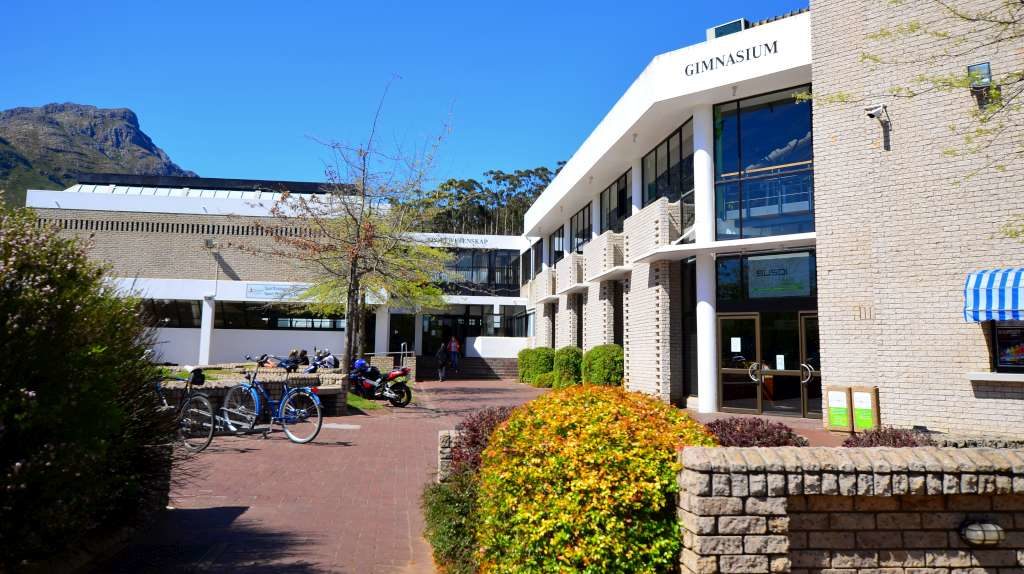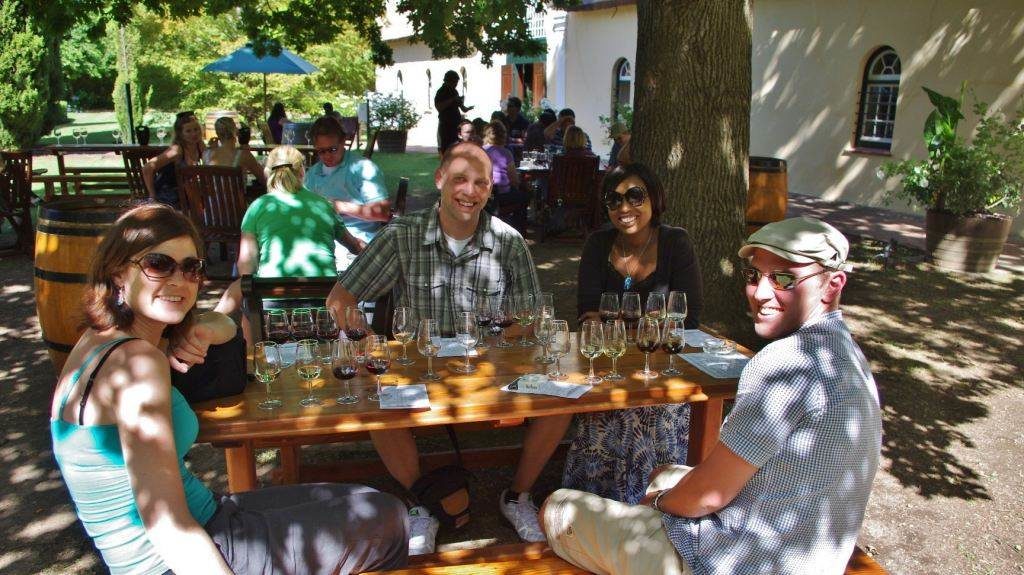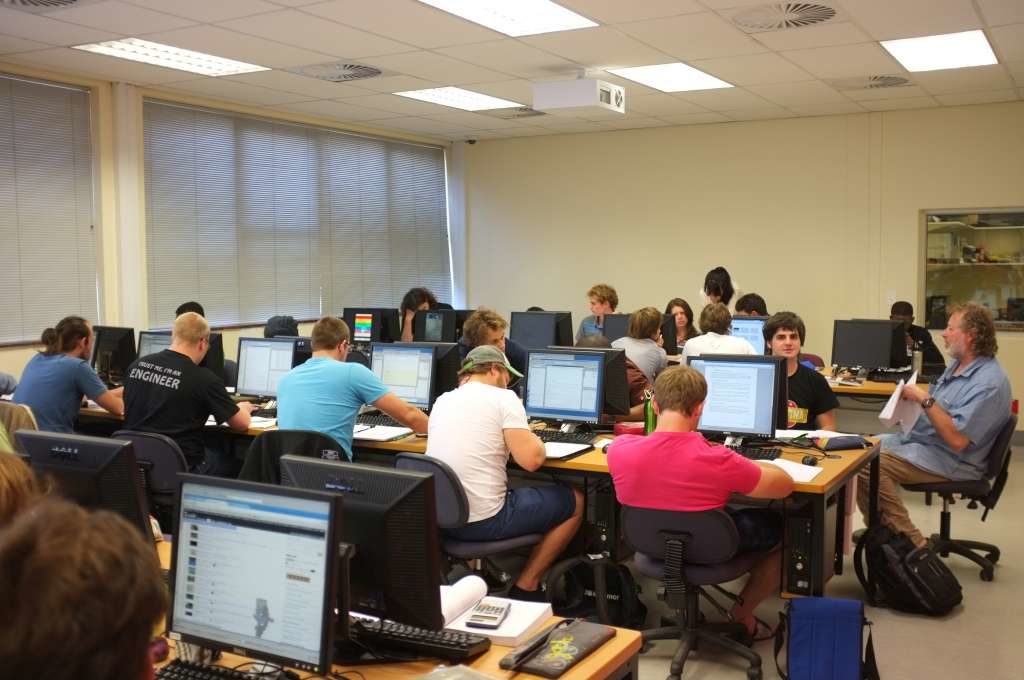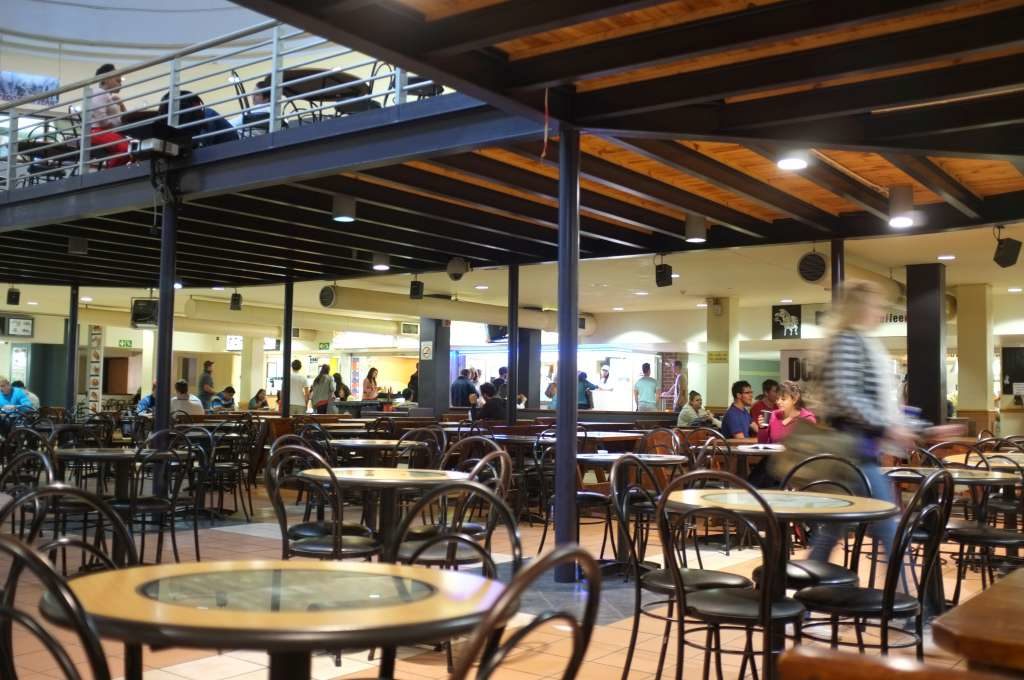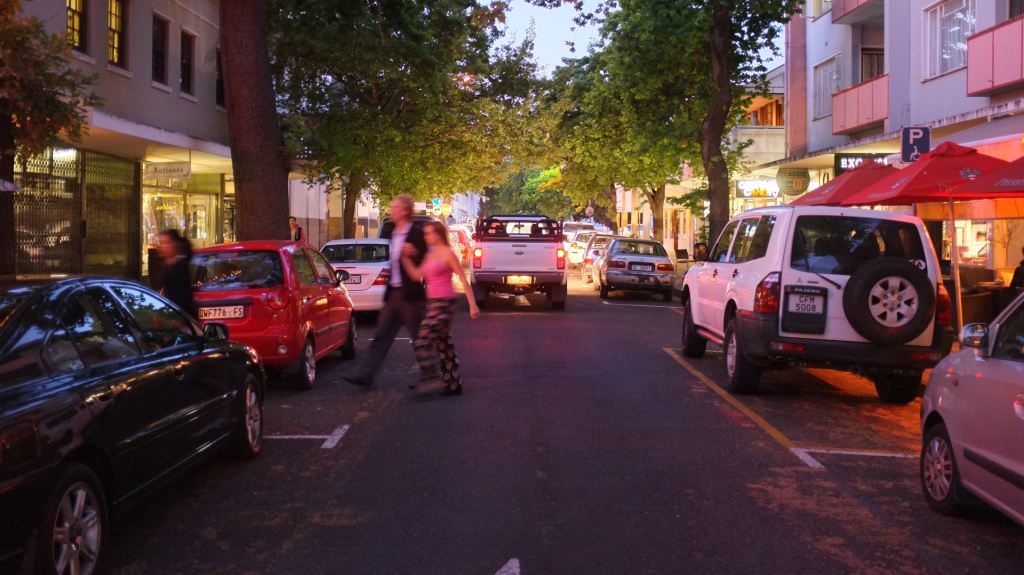

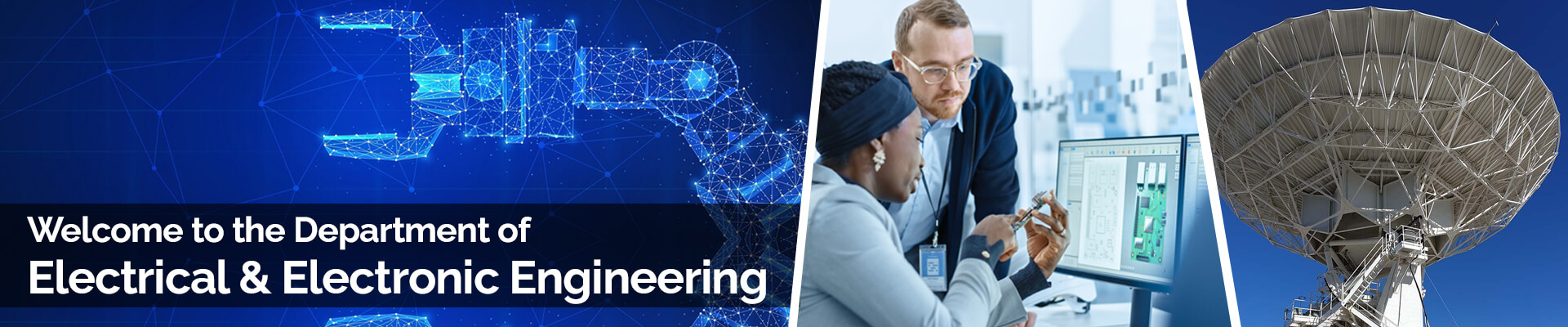
The Department of Electrical and Electronic Engineering forms part of the Faculty of Engineering at Stellenbosch University. Our department is situated in the picturesque town of Stellenbosch in South Africa amongst the Cape Winelands. We pride ourselves in offering quality education for undergraduate students in the fields of Informatics, Energy, Robotics, Telecommunication and Data Engineering. We offer world-class postgraduate supervision for projects in a variety of fields including Electrical Energy Systems, Electronics and Electromagnetics, Computers and Control Systems, Signal Processing and Machine Learning. Please contact us for more information, or for arranging a visit.
What is Electrical and Electronic Engineering
Undergraduate Focus Areas
Not only is our campus one of the most beautiful, but studying at our department can lead you to a vast number of lucrative career opportunities, with our graduates in demand in almost every sector of the economy. Our department has won numerous international awards and has produced world-renowned engineers. We offer the following five undergraduate focus areas. More information for prospective undergraduate students can be found here.
Informatics
The focus of Informatics is on high-level computer science and software systems such as Internet communication, virtual storage, hardware and software design.
Energy
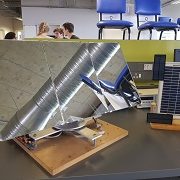
Here you will learn about electric motors, power generation, renewable energy, energy control and computer controlled power management.
Robotics
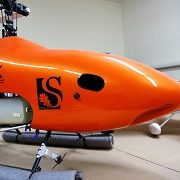
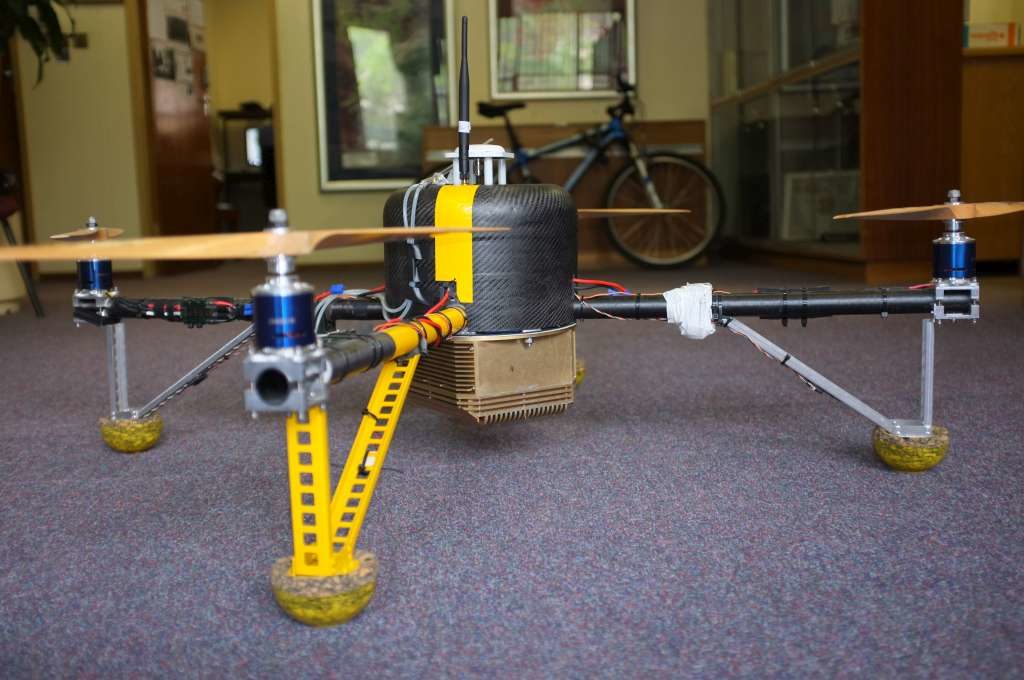
This is where mechanics meets electronics – one of the most exciting fields! It covers the design of robot vehicles, unmanned aeroplanes and satellites.
Telecoms
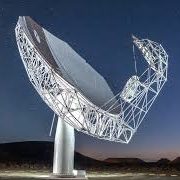
Electromagnetics and Telecommunication is a fascinating field. This branch focuses on high-frequency techniques and the transmission or reception of data.
Data Engineering
Get prepared for the Fourth Industrial revolution by learning to structure, model and analyse large amounts of data in a data-driven society.
Postgrad and Research Focus Areas
The postgraduate activity in the Department is the biggest engineering research activity in South Africa and offers students access to very advanced laboratories and facilities. We welcome prospective postgraduate students from all over the world. There are four main research divisions within the department and research is performed in close cooperation with local industry as well as international partners.
Computers &
Control
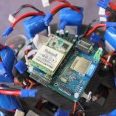
Learn how to design and build digital systems and microcomputers to control almost any device, from automatic irrigation systems to aircraft autopilots and satellites targeting their cameras on the ground.
Electrical Energy Systems
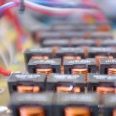
Design electrical transmission systems, large-scale electrical machinery and high-power electronic converters. Find out how to generate power from renewable resources and design battery-powered vehicles.
Electronics & Electromagnetics
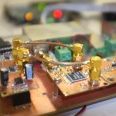
Get involved with microwave electronic design, antenna and microwave component design, computational electromagnetics, superconducting and ultra-high speed electronics and integrated circuits.
Signal Processing & Machine Learning
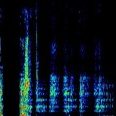
Learn how to design and build digital systems and microcomputers to control almost any device, from automatic irrigation systems to aircraft autopilots and satellites targeting their cameras on the ground.
Research Updates and News

Multilingual Acoustic Word Embeddings for Zero Resource Languages
Over the last few years, there have been significant advancements…
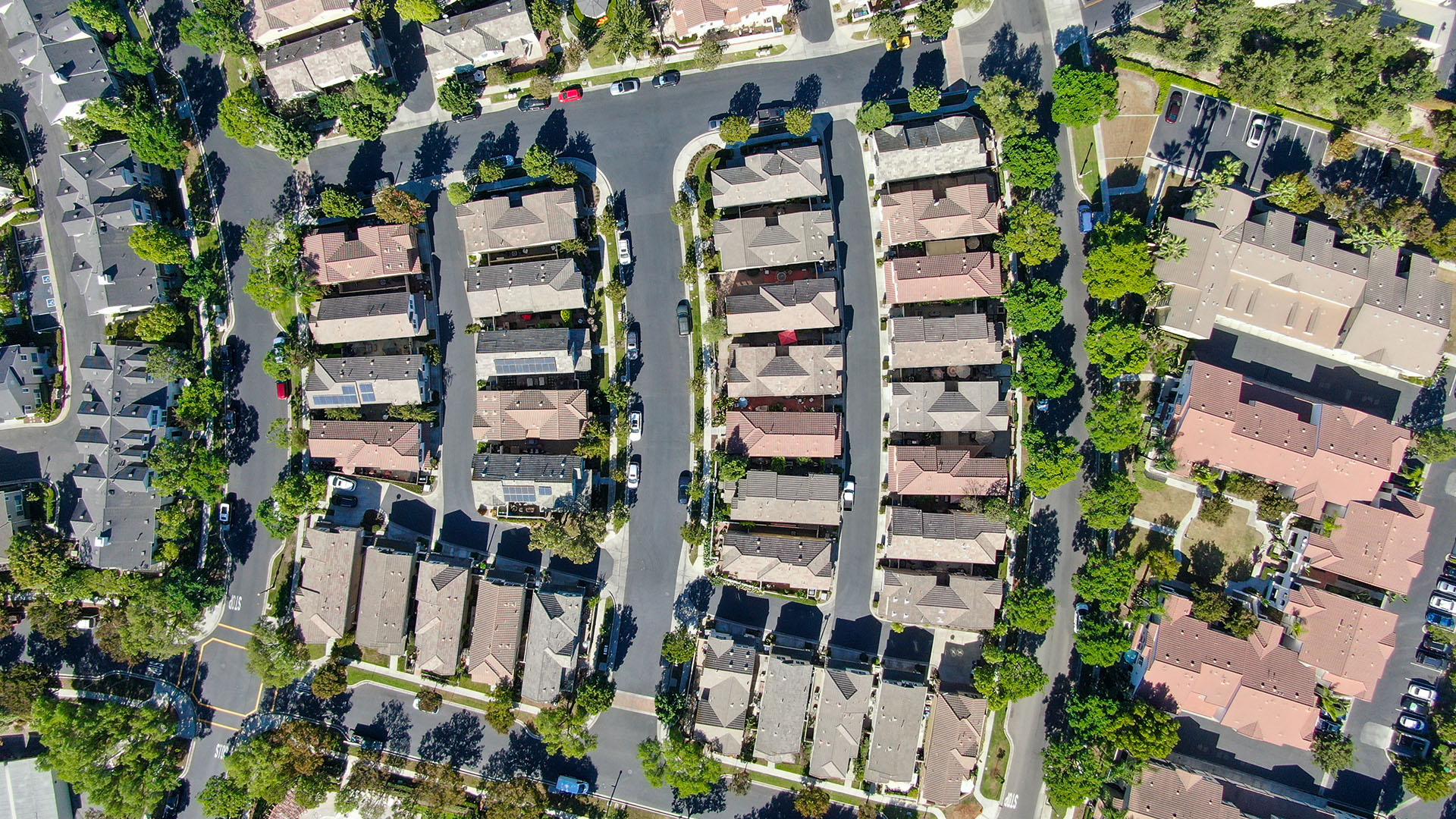
Machine Learning Models for Mass Appraisals: Advancing Valuations in the Digital Era
A property appraisal is a professional, unbiased valuation that determines…
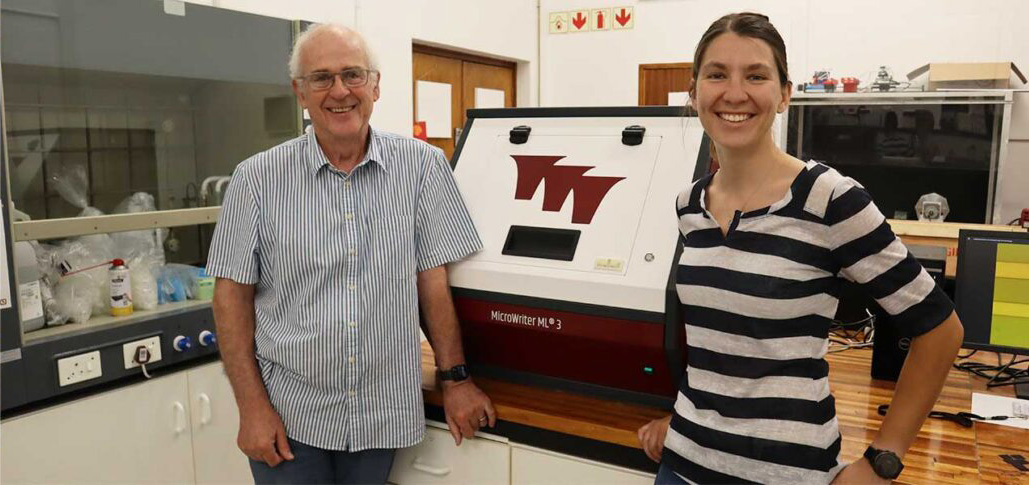
Department of Electrical and Electronic Engineering acquires first MicroWriter ML®3 in Africa
In a first-of-its-kind for Africa, the Department of Electrical and…
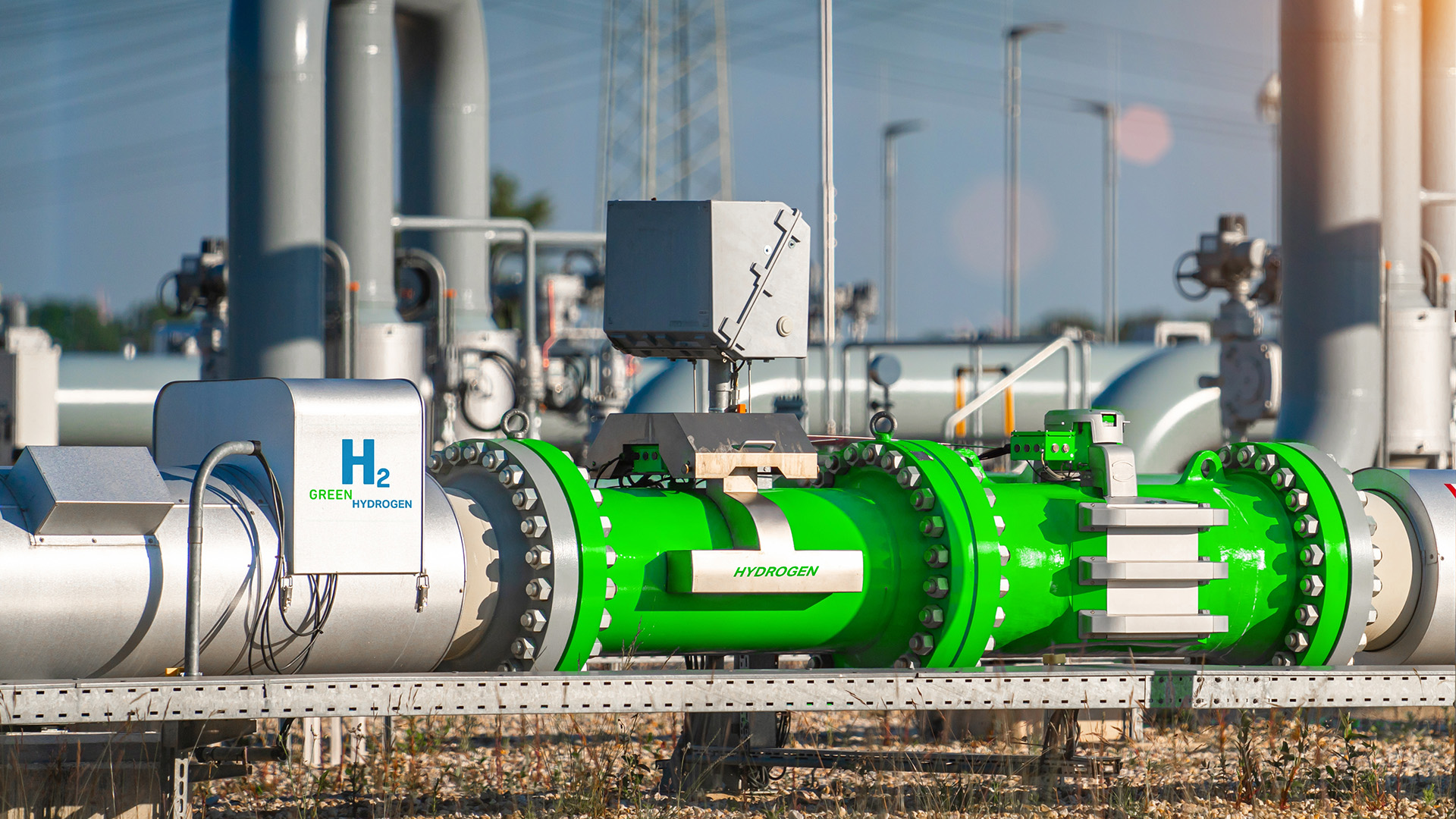
Grid-connected Hybrid Energy System Modeling and Optimisation Study for Green Hydrogen Production in South Africa
South Africa heavily relies on coal-fired power stations for most…
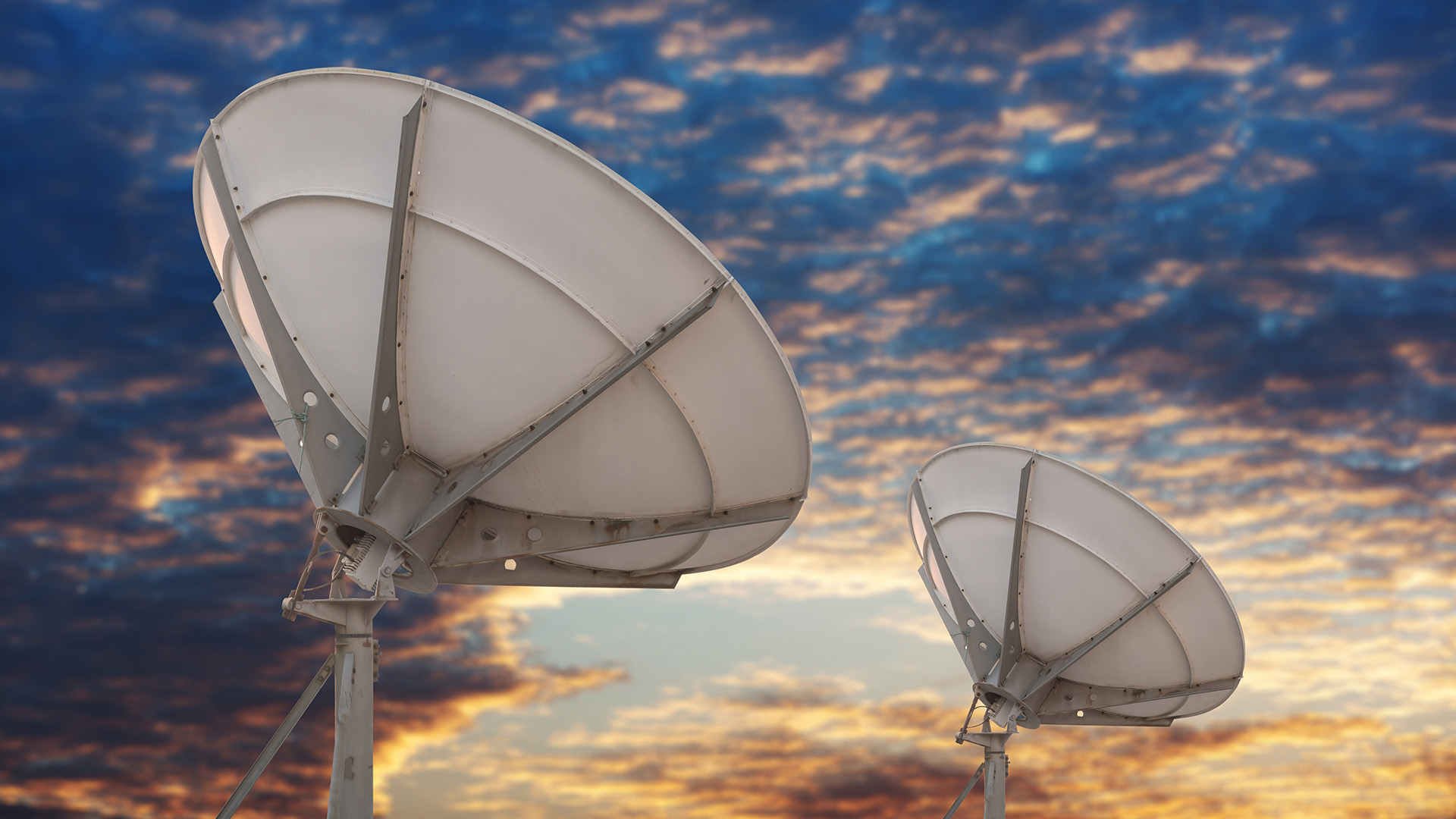
Impact and Cause of Sensitivity Ripple in Radio Astronomy Reflector Antennas
Reflector antenna systems are often used in radio astronomy. This…
Exploring the Use of Contrastive Learning to Perform Audio Classification for TB Screening
Currently, Stellenbosch University is researching an accessible tuberculosis (TB) diagnosis…